
Peppol Registration
How to connect your company or an organisational unit to the Peppol network and start sending and receiving e-invoices
Over the Peppol network you send and receive structured e-invoices directly in Acadsys. Acadsys acts as your digital postman: it delivers your invoices to customers, collects invoices from suppliers, and reports the data to the Financial Administration automatically.
Registration has two parts. One happens in Acadsys (you create a Peppol company, accept the terms and connect it), the other on the vPDS portal of the Slovak Financial Administration, where you choose the digital postman whose name Acadsys shows you.
The screenshots on this page show the Slovak version of the application.
What you need
- Permission to manage Peppol companies in Acadsys (usually held by an Administrator).
- The company's DIČ (tax ID, exactly 10 digits). IČO, VAT ID, IBAN and address are optional.
- A person authorised to act on behalf of the company, who accepts the delivery service terms.
- An eID card to log in to the vPDS portal.
If you do not see Peppol under Settings, the Peppol module is not enabled in your installation or you do not have permission for it. Contact your Administrator or support.
Step 1: Add a Peppol company
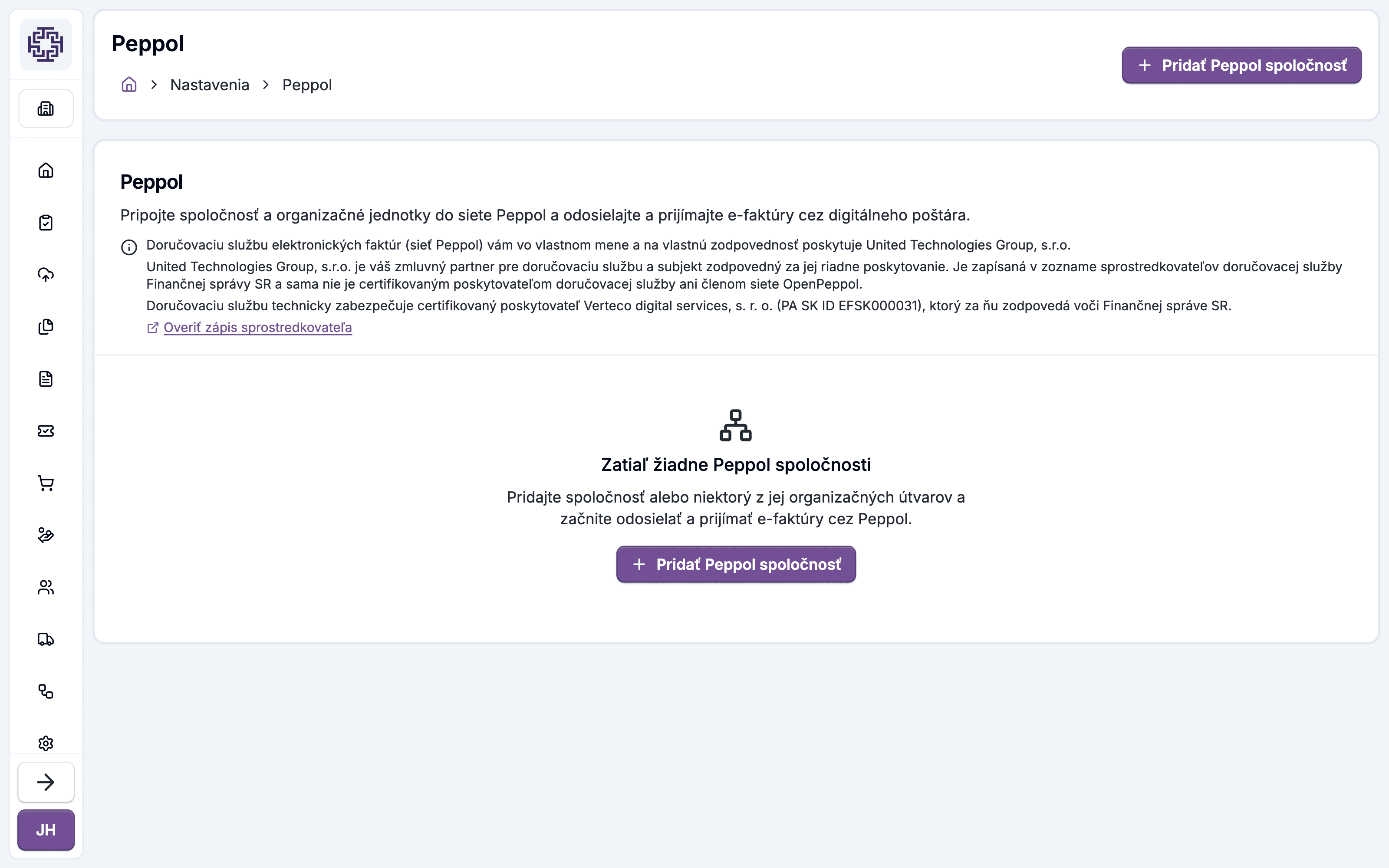
- Go to Settings → Peppol.
- Click Add Peppol company.
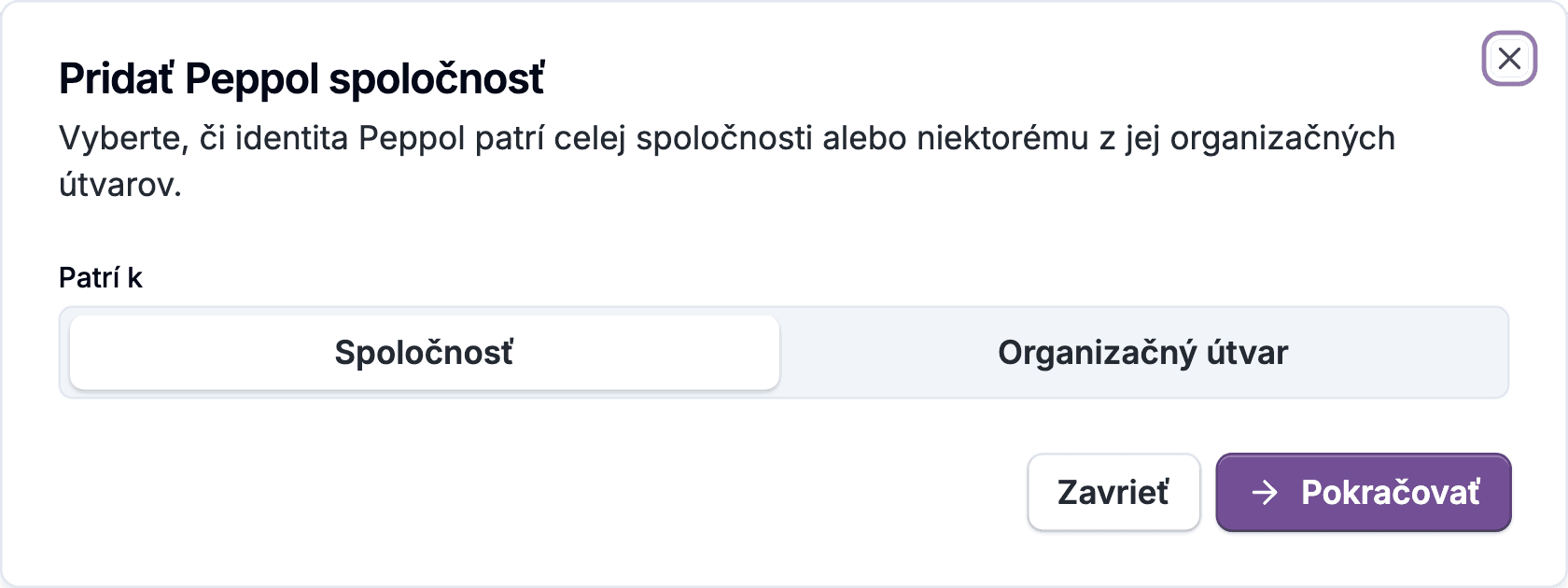
- In Belongs to, choose who the Peppol identity belongs to:
- Company — the identity of the whole company,
- Organisational unit — the identity of one unit; pick it from the list.
- Click Continue. Acadsys prefills the details from the company profile.
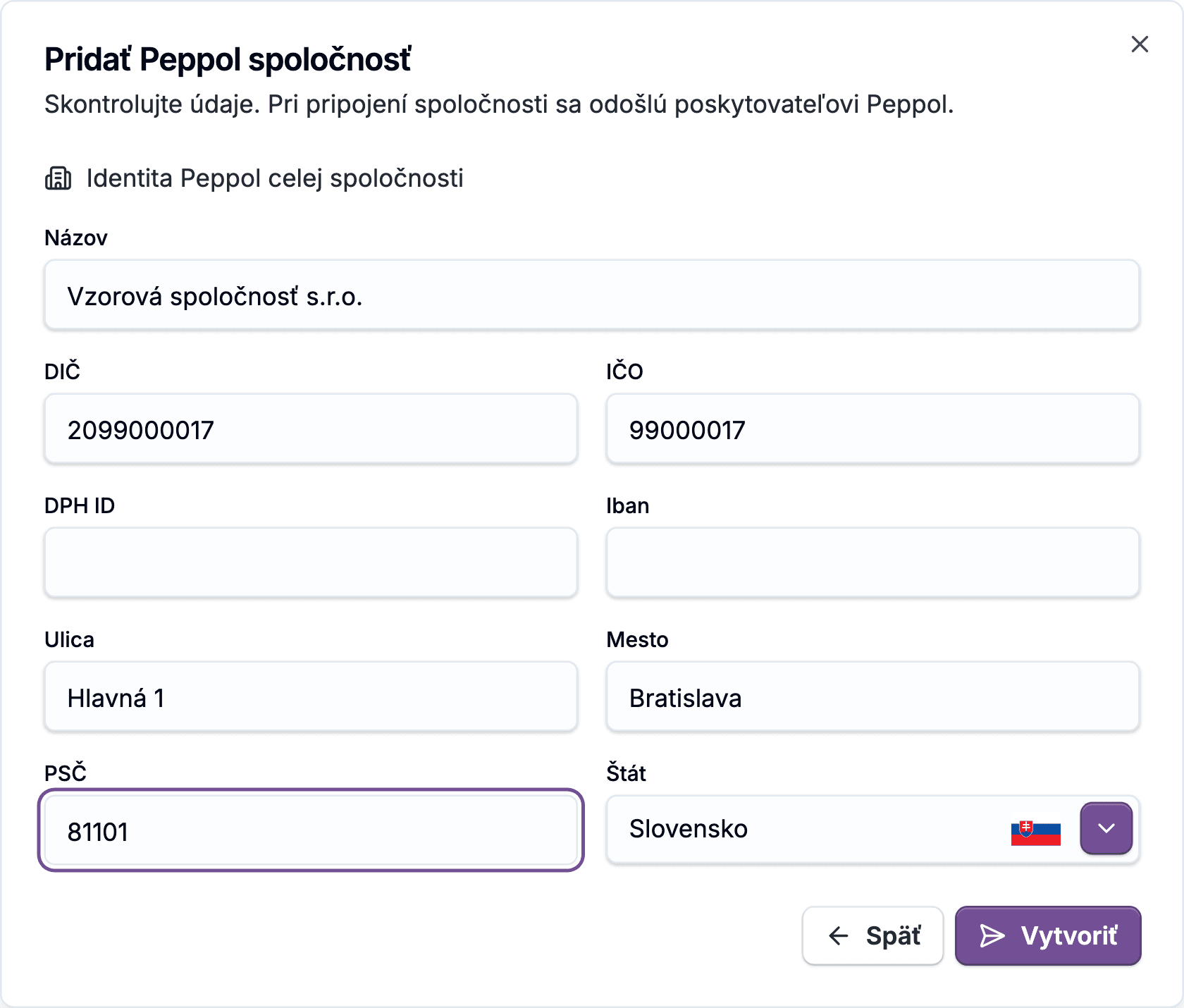
- Check the name, DIČ, IČO, VAT ID, IBAN and address. These details are sent to the Peppol provider when you connect.
- Click Create.
The Peppol company detail opens in the Draft status. Nothing is registered yet.
DIČ, IČO and the organisational unit can only be changed before the company is connected. Check them while it is still a draft.
Organisational units have no DIČ or IČO of their own in Acadsys. For a unit identity, enter the DIČ under which the unit is registered for e-invoicing.
Step 2: Accept the delivery service terms
In the Connection section of the company detail:
- Click Read the terms and read them.
- Tick I agree to the delivery service terms.
- Tick I am authorised to act on behalf of the company.
- Click Accept terms.
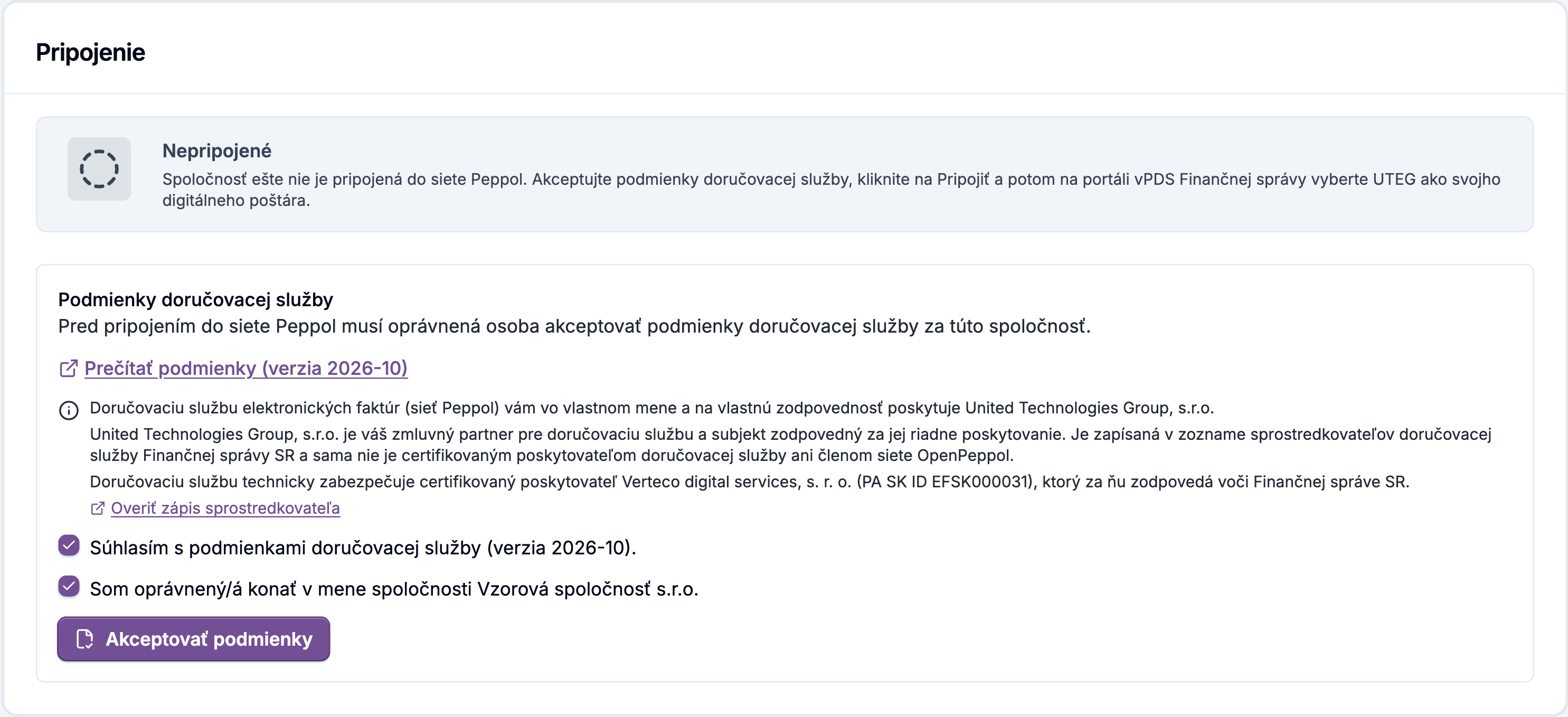
The Connect button does not appear until the terms are accepted. Who accepted them and when is shown in the company summary under Delivery service terms.
Step 3: Connect the company
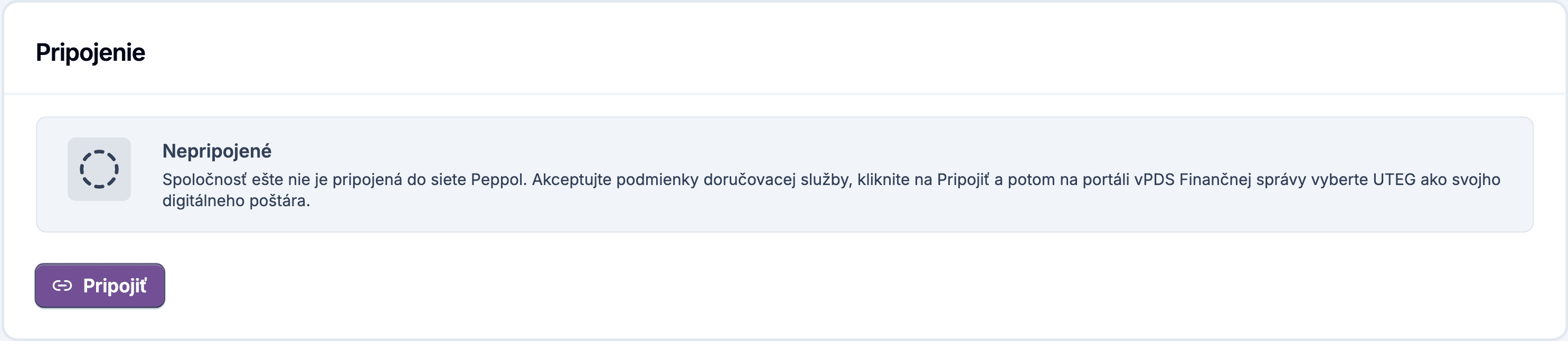
Click Connect. The status changes to Waiting for selection on the FS portal and the page shows the steps for the vPDS portal.
Step 4: Choose your digital postman on vPDS
- Click Open vPDS. The vPDS portal of the Financial Administration opens.
- Log in with your eID card.
- For your DIČ, choose the digital postman whose name is shown on the page in Acadsys.
- Confirm your choice.
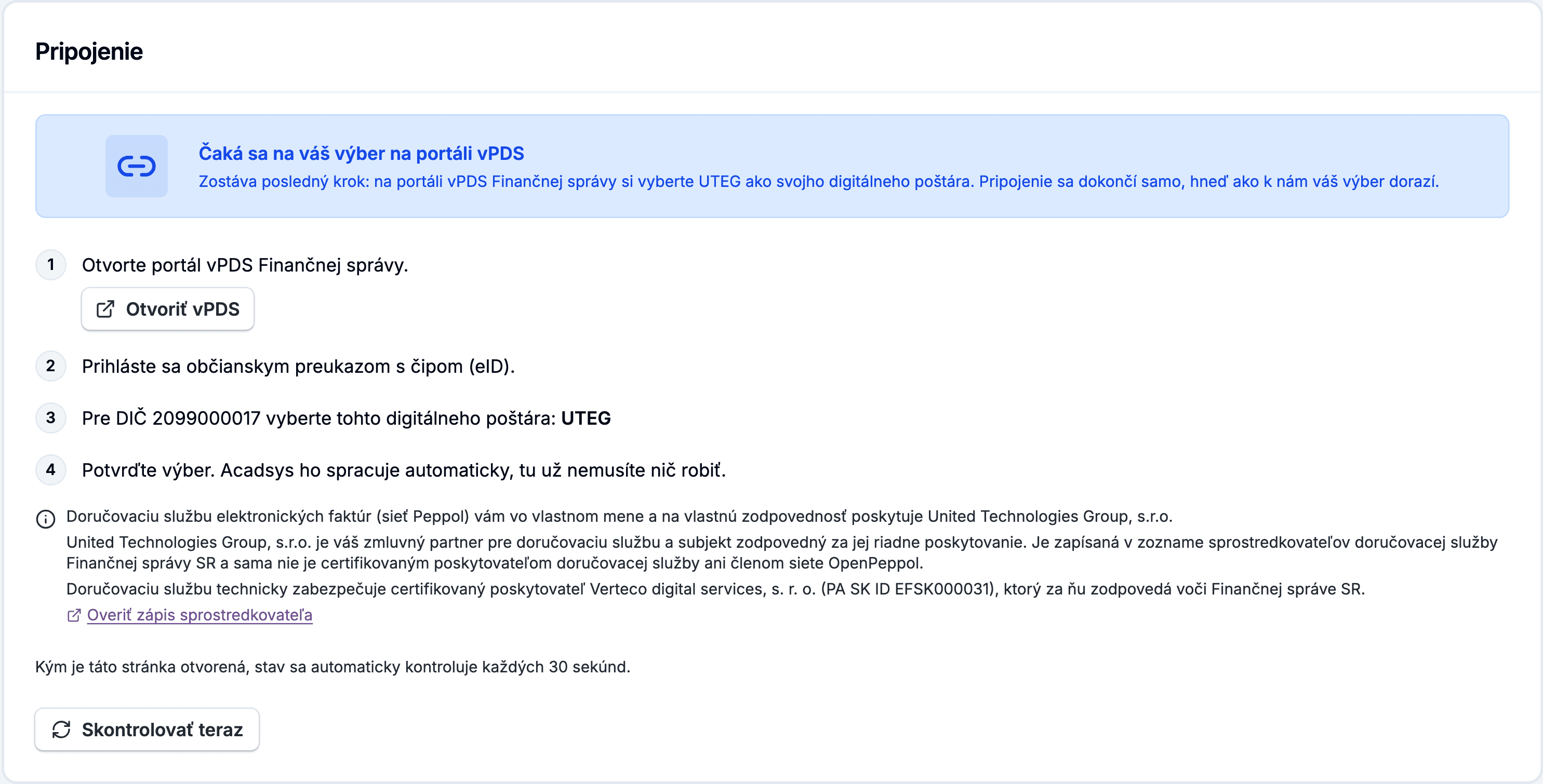
There is nothing else to do in Acadsys. While the company detail is open, the status is checked every 30 seconds; click Check now to check it immediately.
Step 5: Verify the company is connected
Once your choice is processed, the status changes to Active and the Connection section shows:
- Receiving e-invoices is on
- Sending e-invoices is on
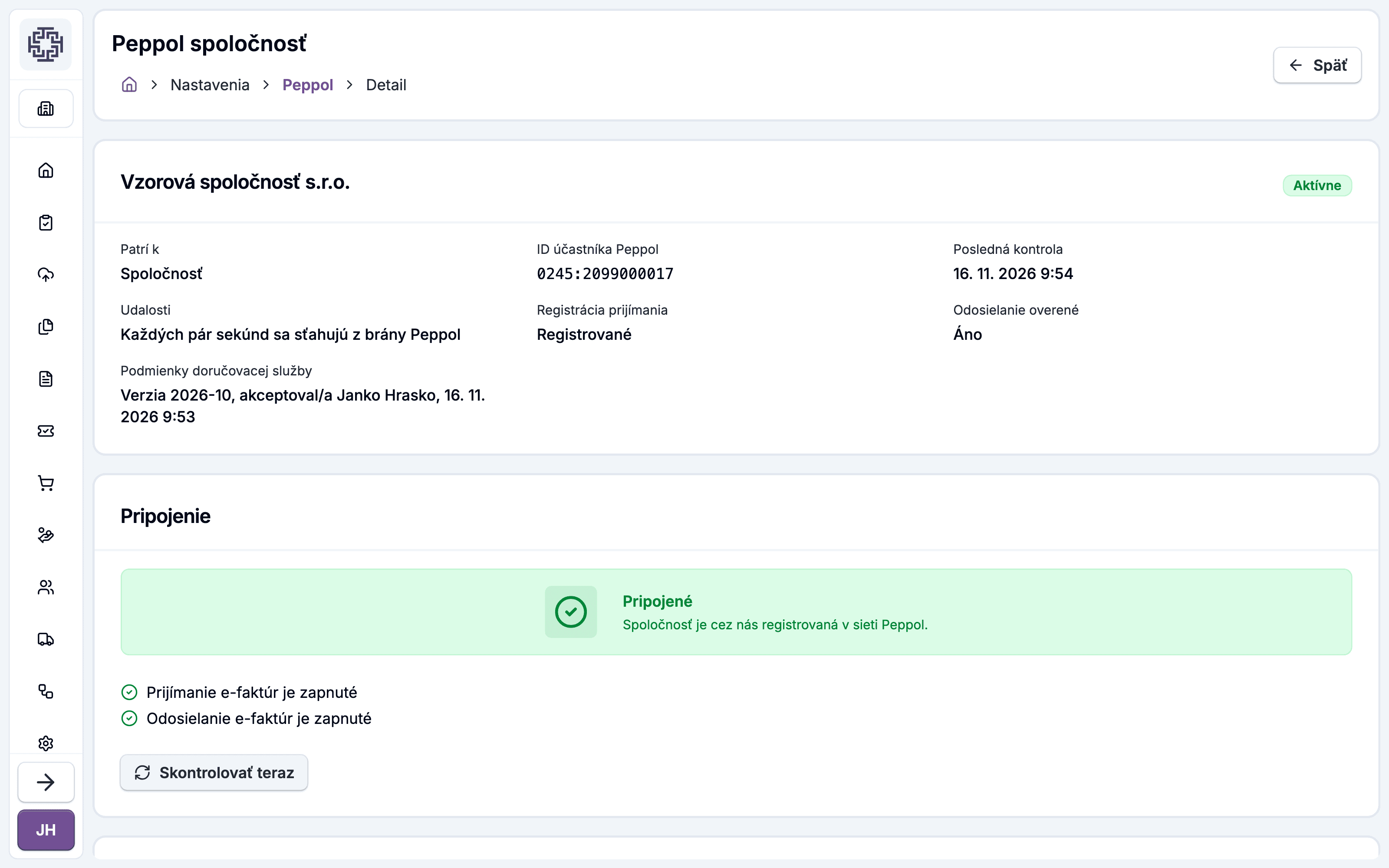
From now on you can send invoices with Send via Peppol, and received e-invoices appear under Received e-invoices.
If you already receive e-invoices through another provider
If your DIČ is registered for reception with another Peppol provider, the status after connecting is Migration code required. You have two options:
| Option | What to do |
|---|---|
| Move reception to Acadsys | Ask your current provider for a migration code, enter it in the Migration code field and click Submit code. |
| Keep receiving there | Click Receive elsewhere, send only. The company moves to the Send only status. |
From Send only you can move reception later with Move reception to us.
Connection statuses
| Status | Meaning | What to do |
|---|---|---|
| Draft | The company is created but not connected. | Accept the terms and click Connect. |
| Waiting for selection on the FS portal | Waiting for your choice on vPDS. | Complete step 4. |
| Active | Sending and receiving both work. | Nothing. |
| Migration code required | Reception is registered with another provider. | Enter the migration code or choose send only. |
| Send only | You send through Acadsys and receive elsewhere. | Nothing, or move reception. |
| Rejected | The registration was rejected. | Choose the postman on vPDS again and connect again. |
| Selected on vPDS, not accepted | You chose the postman on vPDS, but the terms are not accepted in Acadsys. | Accept the terms and connect the company. |
| Sending paused | The Peppol provider paused sending. | Contact support if it lasts. |
| Deactivated | The company is disconnected. | You can connect it again. |
| Released | The company is connected to the Peppol provider directly; Acadsys no longer sends or receives for it. | To use Acadsys again, click Connect. |
If you chose the postman on vPDS before accepting the terms in Acadsys, received e-invoices do not reach Acadsys and the provider deletes them after 14 days. Accept the terms and connect the company as soon as possible.
Troubleshooting
The status stays on "Waiting for selection on the FS portal". Click Check now. If the selection from vPDS still has not come through, expand Advanced, enter the hexadecimal token shown on the portal in the Verification token field and click Verify.
"Delivery service terms are not configured" is shown. The company cannot be connected until the Acadsys administrator configures them. Contact support.
You are asked to accept a new version of the terms. The connection keeps working, but accept the new version by the date shown.
Disconnecting and deleting
In the Danger zone section of the company detail:
- Delete — removes the draft. Nothing has been registered at the provider yet.
- Disconnect — pauses sending and stops receiving e-invoices in Acadsys. Type the company name to confirm. The company stays registered in the Peppol network; to leave Peppol entirely, contact support.

If you disconnect a company in the Waiting for selection on the FS portal status and your selection has not arrived yet, the connection is just cancelled and the company returns to draft.
Further settings
On the Peppol company detail you can also set up:
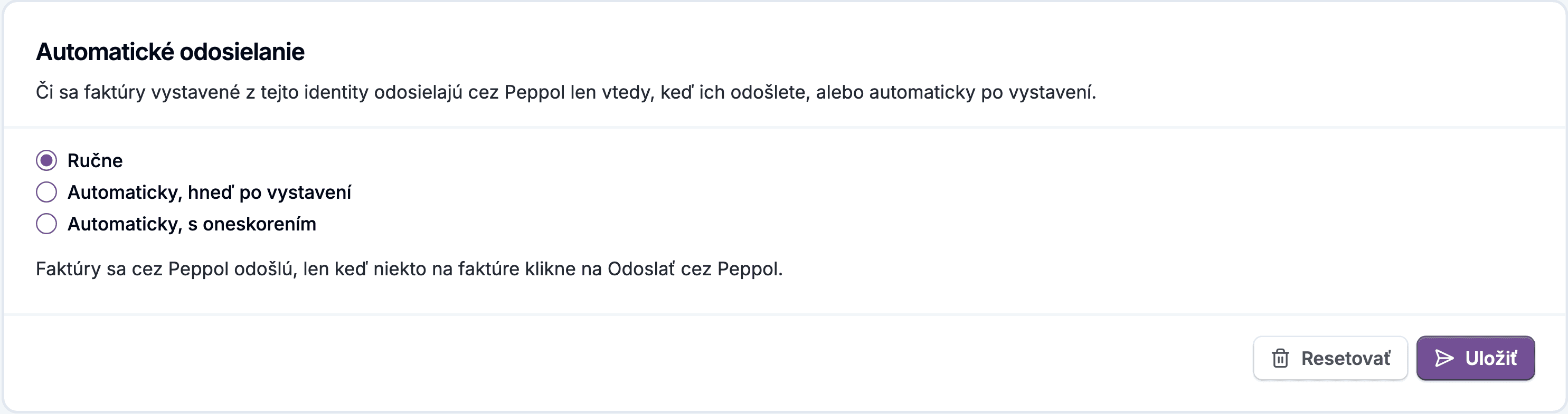
- Automatic sending — whether invoices are sent manually, right after issuing, or with a delay.
- E-mail on received e-invoices — a notification to the given addresses for each received e-invoice.
- Routing received invoices to units — rules that assign a received e-invoice to an organisational unit.